
Configuring Uploady in JDownloader 2 automates batch downloads, handles link queues, and enables multi-stream resuming. In testing, 4 parallel downloads achieved 42.14 MiB/s combined (see full benchmark review →).
Step-by-Step Account Configuration
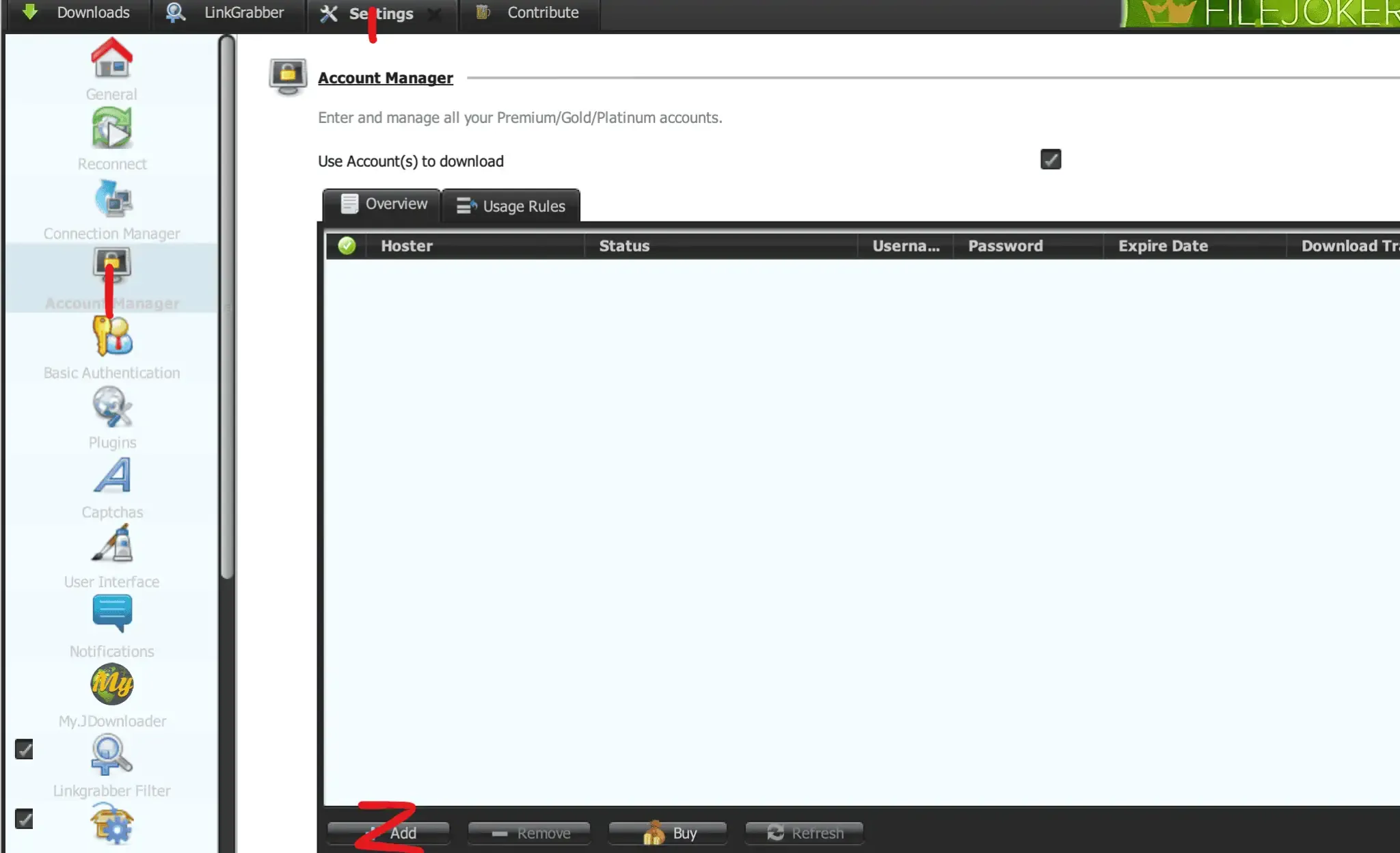
Step 1: Open Account Manager
In JDownloader 2, navigate to Settings → Account Manager in the left sidebar, then click Add.
Step 2: Authenticate uploady.io
Search for uploady.io, enter your account email and password, and click Save.
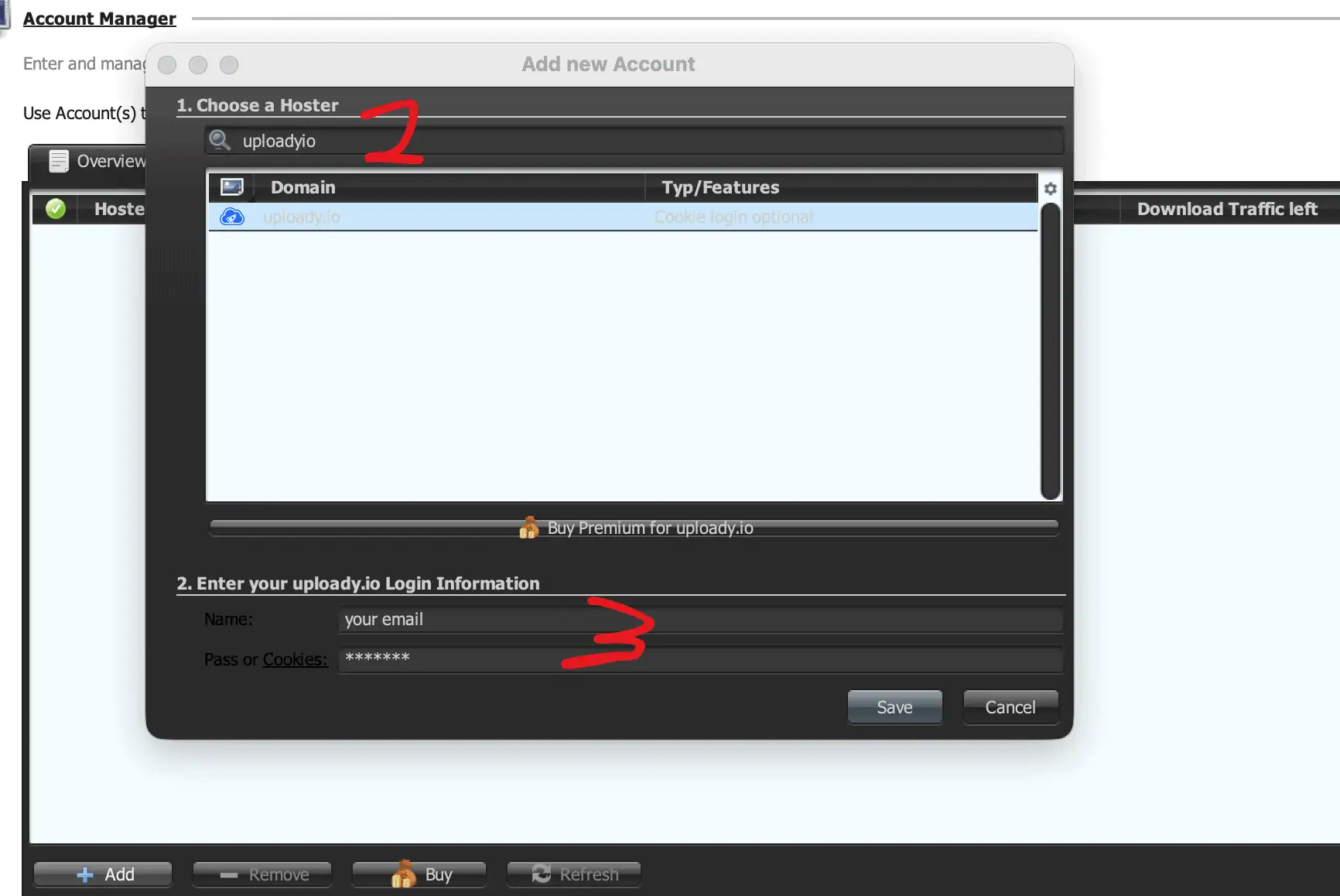
Optional Cookie Login: If standard email/password fails due to Cloudflare verification, use JDownloader's native "Pass or Cookies" input following the official JDownloader browser cookie export guidelines.
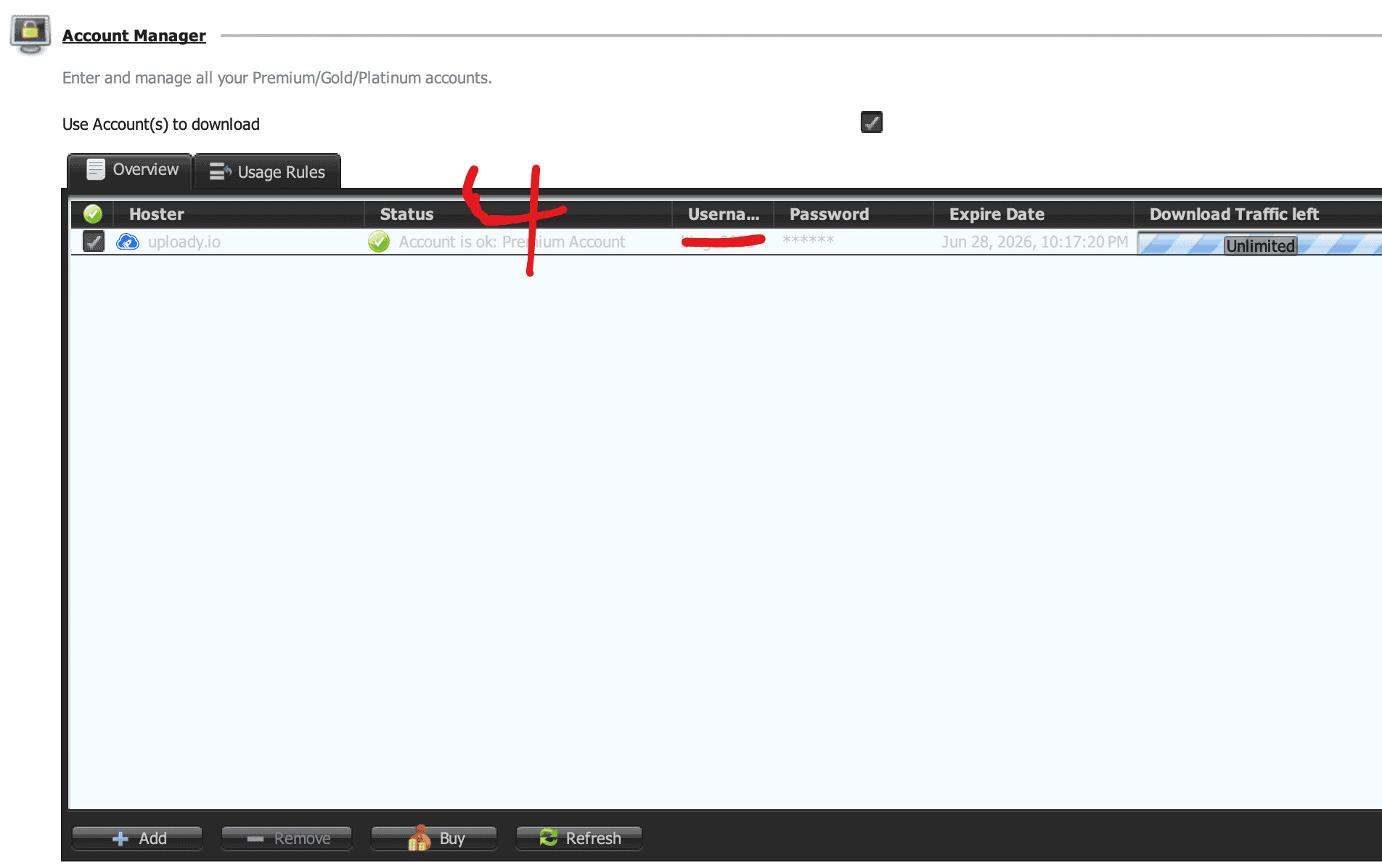
Step 3: Confirm Premium Status
Ensure JDownloader displays a green checkmark with the status “Account is ok: Premium Account”.
Concurrency Settings
Do not set maximum chunks higher than necessary. Our measured 42.14 MiB/s was achieved using 4 simultaneous downloads with default chunks. Setting 10+ chunks per file can result in temporary IP connection throttling by the server.
Common JDownloader Issues
Account displays as Free
Confirm Premium status on the Uploady website, then right-click the account in JDownloader Account Manager and select Refresh.
Plugin outdated or login errors
Run JDownloader software updates. If issues persist, test the cookie-login method rather than repeated password retries.
Downloads stop after heavy transfers
You have likely reached your 24-hour bandwidth quota. Check the Uploady Daily Download Limit Guide for details.
Slow download speeds
Check for ISP throttling or routing bottlenecks. Follow our Uploady Troubleshooting Guide to isolate server vs network issues.